

I’m going to teach you how to add a team member to Apple Business, also known as your Apple Maps listing.
The simple truth is that you can’t keep all of your info and marketing tactics humming along by yourself. Sooner or later, you’re going to want some help getting everything done. You don’t want potential customers getting confused over your outdated hours of operation or list of services, right?
Apple Business is a powerful tool, but only if you have a rock-solid plan to keep it updated. Apple Maps is growing in popularity (along with the rest of Apple’s products).
Google Business Profile is still the go-to for most local businesses, but I’m betting you don’t want to lose out on potential clients looking for your business or service, and not finding your details in Apple Maps.
Unfortunately, most small business owners don’t maintain their Apple Business details because they are too busy running the business. They don’t even know it’s possible to add a team member to help manage the profile.
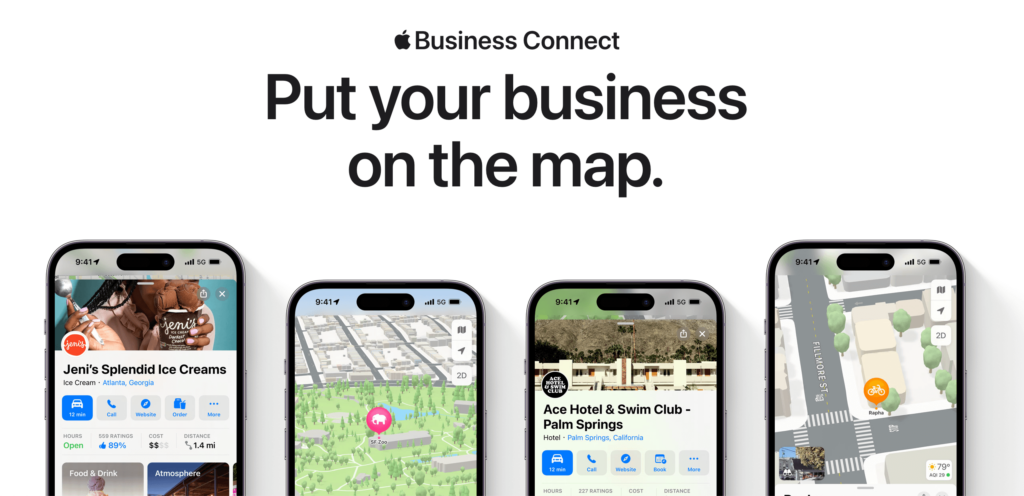
How can you invite a Team Member to Apple Business in 2026? (6 steps)
Here is how you can share access to your Apple Business profile (Apple Maps) with a coworker, freelancer, or local SEO agency:
1. Use your Apple ID to Sign in to Apple Business
First, make sure you’re using the Apple ID attached to the account that is the primary owner of the Apple Business profile.
Here’s that link again: https://business.apple.com/
If you’re logged into the primary ownership account, your business dashboard will open. Apple rebuilt this dashboard in 2026 when Apple Business became Apple Business, so the menu names below are the new ones.
2. Choose “People,” then “Users.”
Here you’ll see everyone who already has access to your Apple Business account, with their role. You can add, edit, or remove people’s access from this screen.
3. Select “Add,” then “Send Email.”
“Send Email” invites someone who already has their own Apple Account, which is what you want for an outside helper like a freelancer or an agency. They keep their own login, and you never share your password.
4. Enter their email address and choose their role.
Type in the email address tied to their Apple Account, then pick a role. For someone who’ll keep your Apple Maps listing up to date, Marketing Administrator is usually the right choice. It covers your locations and business details without handing over control of the whole account.
Apple Business now has a few built-in roles, plus custom roles if you need something narrower:
- Marketing Administrator – manages your brands and locations: hours, contact info, photos, and the details people see on Apple Maps.
- Organization Administrator – full control of the account, including who else has access. Keep this for owners.
- Custom role – build one with only the permissions you want to hand out.
You’ll also choose whether they manage a single brand or all of your brands. If you have more than one location under the same business, “all brands” saves you repeating this later.
*Make sure you only give full administrator access to a team member that (1) you trust, and (2) is trained on how to update your details on your Apple Business profile.
Incorrect information or frequent changes can hinder your search rankings (and provide incorrect business info) in Apple Maps. So, I recommend setting up a quick 15-min tutorial meeting before handing over the keys to the kingdom!
5. Choose “Invite” to send your invitation to the team member.
Once you send the invitation, you’ll see them in your list of users, marked as invited until they accept.
6. Confirm that your Team Member received the invitation email from Apple Business.
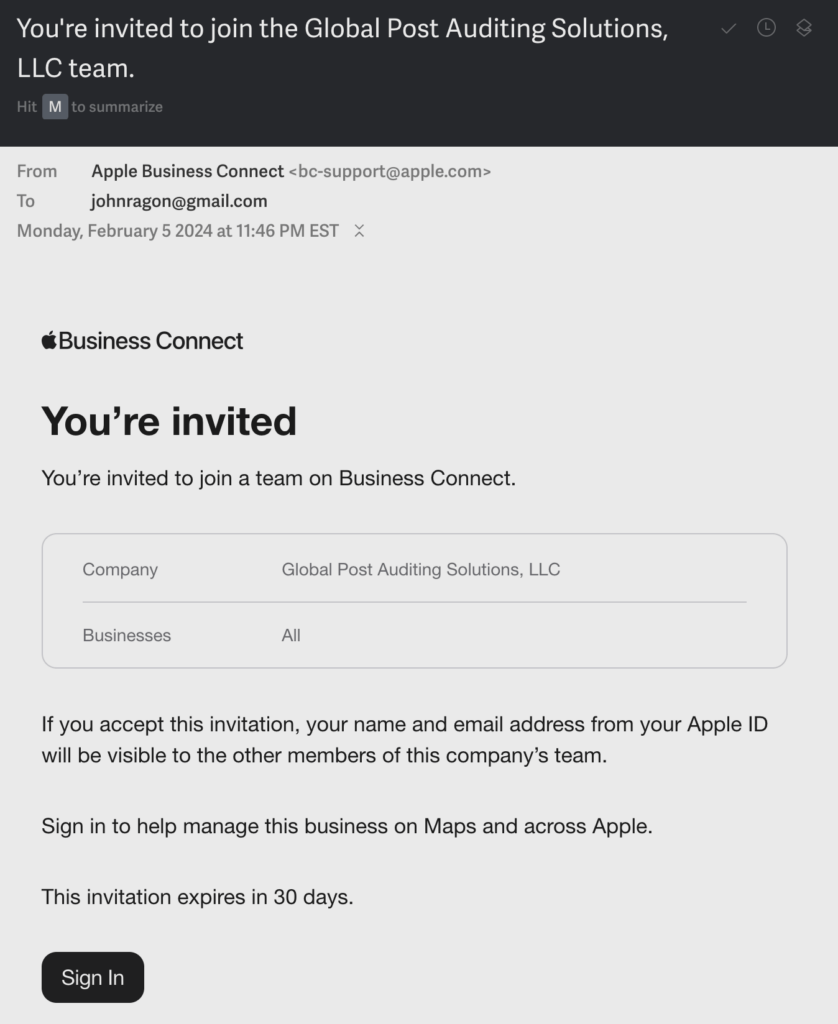
Apple will send a notification email to the team member as soon as you hit that “Invite” button. But, check with them personally to make sure it has arrived. Invitations from Apple expire in 30 days.
Tell your new Apple Business manager to watch for an email to arrive from: Apple Business, sent from an apple.com address. Ask them to check spam if it doesn’t show up.
Here’s what the message from Apple will look like:
Once they sign in to their Apple ID (or create a new one with the email you designated), they will be ready to start optimizing your Apple Business profile.
Your new manager will be able to edit your profile on Apple Maps, and you can change their permission level at any time.
Here are some areas the new team member will have access to update (if you gave them the Marketing Administrator role):
- Business type
- Business address and location details
- Business phone
- Additional business locations
- Responses to reviews
- Business categories
- Business posts (photos, sales, announcements, etc.)
- Your business logo, profile photo, and various other photos
Click here to get my complete optimization guide to Apple Business. Start getting more clients with Local SEO strategies that outlast the usual marketing gimmicks.
Establish Expectations for Ownership
Now, it’s time for you and your new Apple Business manager to set some basic guidelines for how you want to optimize and use your profile.
A simple SOP (standard operating procedure) document will go a long way toward helping you get found on the largest search engine around. Clear business roles enable faster response times to reviews, more accurate business settings, and Apple Business listings that drive more traffic, phone calls, and customers to your business.
Most marketing agencies will have a documented SOP (process) for responding to customer reviews. So, make sure your marketing manager reaches out to connect with them. Slowing down to record a couple of steps might save you serious pain in the long run.
Need a Hand Managing Your Apple Business Profile?
We save local service companies countless hours of detailed work by optimizing and managing their Apple Business profiles. But, you already know it takes more than a great Apple Maps listing to attract new leads. Gridwork Marketing has the local SEO experience (and strategic process) needed to make sure your digital presence is growing your reach!
Are you ready to start using SEO to grow your local business?